
← All workflows
n8n Workflows for Marketing · Workflow 01

Trending topics
to blog + X post.

A single n8n workflow that listens for a keyword, pulls the most relevant YouTube videos and Google Trends of the last 48 hours, writes an SEO-ready blog post and a matching X post with GPT, and publishes both automatically through Blogger and Buffer.

Download the workflow (.json) See the live blog ↗ Copy the template sheet ↗ Credentials setup → Jump to node anatomy
01
Overview

What this workflow does.

Three independent mini-flows live in the same canvas. Each one can be triggered on its own — so you can scout YouTube on demand, pull Google Trends on a schedule, and publish drafts once a human has marked them as ready.

📥
Step 1

YouTube scout

The chat trigger accepts a keyword from you. n8n searches YouTube for the most relevant videos from the last 48 hours in Spain and writes each one as a new row in the youtube tab of your Google Sheet.

📈
Step 2

Google Trends capture

A separate branch hits Google Trends' public RSS feed for Spain, parses the XML, and appends the trending queries to the google trends tab of the same sheet — useful as a complementary signal to what's moving on YouTube.

✍️
Step 3

Draft + publish

After you tick Publish = yes on a row, the manual trigger reads it back and asks GPT-4.1-mini to draft (a) an SEO-optimised HTML blog post and (b) a short X post. The blog goes straight to Blogger; the X post is queued through Buffer.

👀

See it running before you build

Live blog output · lovepoemscreator.blogspot.com — every post was drafted and published by this workflow.
Template spreadsheet · Click to make a copy — opens the reference sheet with the two tabs (youtube, google trends) and column schema already in place.

💡

Why three flows in one workflow?

Because they share the same Google Sheet as a lightweight database. The sheet lets a non-technical editor curate topics between the automation stages — decide which videos become posts, review the draft copy, rewrite if needed, and only then set the Publish column to yes.

The workflow on the canvas

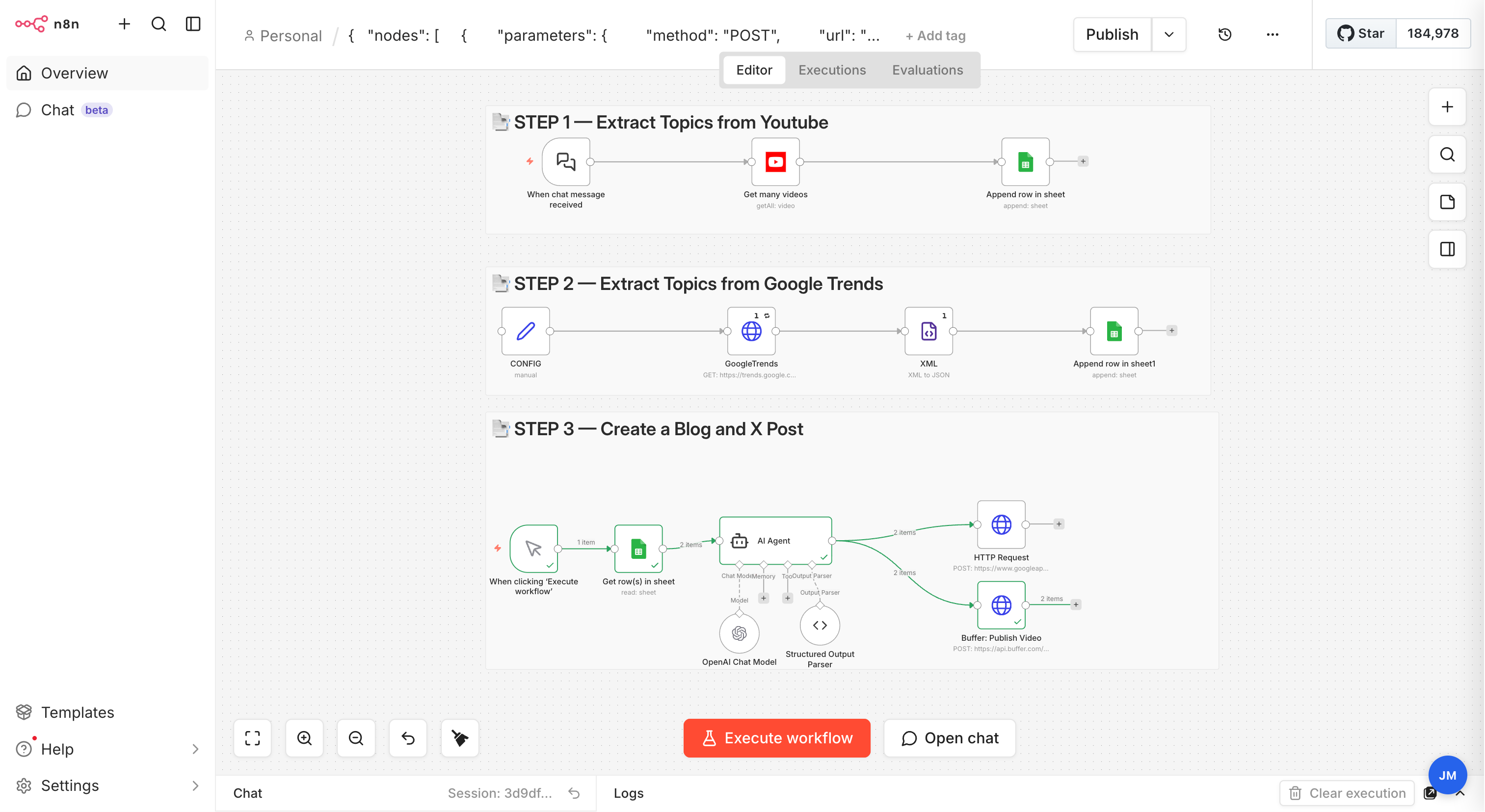
This is what the three flows look like after you import the JSON. Each sticky-note band groups the nodes of one step, and you can execute any band independently while building.

n8n canvas showing the three flows: YouTube topic extraction, Google Trends capture, and AI-drafted blog + X post publishing.
Three sticky-note bands · Flow A (top) → Flow B (middle) → Flow C (bottom)
02
Prerequisites

Six accounts, all with free tiers.

Before you import the workflow, create the accounts below and have each one's API key or OAuth login on hand. None require a credit card to get started.

🤖
Automation host

n8n (Cloud or self-hosted)

Sign up at n8n.cloud for the 14-day free trial, or run npx n8n locally. Every node you see in this guide runs inside n8n.

📺
Source

YouTube Data API v3

Enable the API in Google Cloud Console, create an OAuth 2.0 client, and authorise it against your Google account. n8n will handle the token refresh.

📊
Database + editor

Google Sheets

Use the reference spreadsheet template — click the link, Make a copy to your Drive, and the two tabs (youtube and google trends) with all the right columns are already there. Grab your copy's ID from the URL.

Content generator

OpenAI API

Sign up at platform.openai.com, add pay-as-you-go billing (a few cents per post), and copy your API key. The workflow uses gpt-4.1-mini.

📝
Blog destination

Blogger (Google)

Create a blog at blogger.com. Enable the Blogger API in Google Cloud Console, create an OAuth 2.0 client with the blogger scope, and grab the numeric blog ID from the Blogger dashboard URL. Live demo blog produced by this workflow: lovepoemscreator.blogspot.com — every post there was drafted and published end-to-end by the nodes below.

🔀
Social publisher

Buffer

Sign up at buffer.com, connect your X (Twitter) account as a channel, then go to Account → Apps & Extras to create an API access token. Copy the channel ID from the channel's URL.

⚠️

Write these five values down before importing

You'll paste them into the workflow once: the Google Sheets spreadsheet ID, the Blogger blog ID, the Buffer access token, the Buffer channel ID, and the numeric gid of your google trends tab (it's in the sheet's URL after #gid=).

03
Quick start

Import the workflow in four clicks.

If you just want to see it running, follow these four steps. The step-by-step build from scratch is in §05.

01
Download the JSON

Save youtube-trends-blog-x.json from the link at the top of this page.

02
Import into n8n

In n8n: Workflows → Import from File → pick the JSON. All 17 nodes land on the canvas, pre-wired and annotated.

03
Replace every REPLACE_WITH_*

Open each node that shows a red warning. Swap placeholders for your real IDs and tokens — spreadsheet ID (from your copy of the template), Blogger blog ID (see the live demo blog), Buffer token + channel, and the trends tab gid.

04
Link the four credentials

Attach your YouTube, Google Sheets, OpenAI and Blogger OAuth credentials in the nodes that ask for them. Hit Execute workflow on either branch to run it.

04
Node anatomy

What each node does, in detail.

Fourteen functional nodes plus three sticky notes. Read the three flows top-to-bottom and you can spot exactly where each piece of data comes from and where it's going.

Flow A · YouTube scout (chat → sheet)

A1💬

When chat message received

@n8n/n8n-nodes-langchain.chatTrigger

Opens a hosted chat UI where you type a keyword. Whatever the user types lands in {{ $json.chatInput }} for the rest of the flow to consume. Great for on-demand scouting — replace with a Schedule Trigger if you want a nightly crawl.

In
Out1 item · chatInput
A2📺

Get many videos

n8n-nodes-base.youTube · Resource: Video · Operation: Get Many

Searches YouTube for videos matching chatInput, restricted to uploads from the last 48 h in Spain (regionCode: ES), ordered by relevance. Returns one item per video with snippet + id fields.

In1 keyword
OutN items · full YouTube snippets
CredentialYouTube OAuth2 — link after import.
A3📊

Append row in sheet

n8n-nodes-base.googleSheets · Operation: Append · Tab: youtube

Writes one row per video to the youtube tab of your spreadsheet, mapping id.videoId → ID, snippet.title → Title, snippet.description → Description, snippet.channelTitle → Channel, snippet.publishTime → Publish Time, snippet.thumbnails.high.url → Thumbnail URL. The Publish column is left empty so an editor can tick it later.

InN items
OutN confirmed rows
CredentialGoogle Sheets OAuth2.

Flow B · Google Trends capture (config → RSS → sheet)

B1📌

CONFIG

n8n-nodes-base.set

Holds three tuneable parameters: min_traffic (500), max_results (3), and jina_key (empty for now). Acts as a single source of truth so you can change the thresholds without touching the RSS or Sheets nodes.

In1 item (manual kick-off)
Out1 item · 3 config fields
B2📈

Google Trends RSS

n8n-nodes-base.httpRequest · GET trends.google.com/trending/rss?geo=ES

Fetches Spain's public trending-searches RSS feed. executeOnce: true means it fires once per workflow run, not once per upstream item. retryOnFail is enabled because the endpoint is sometimes flaky.

In1 item (config)
Out1 item · raw XML body
B3📄

Parse XML

n8n-nodes-base.xml

Turns the RSS payload into a JSON tree. explicitArray: false and normalize: true keep the output shallow and trim whitespace — easier to reference downstream via $json.rss.channel.item.

In1 item · XML
Out1 item · JSON tree
B4📊

Append trend to sheet

n8n-nodes-base.googleSheets · Tab: google trends

Writes the trending queries to the google trends tab. The Title column receives the whole rss.channel.item array so you can see every trend per run on a single row (or split it with a downstream Item Lists node if you prefer one-row-per-trend).

In1 JSON tree
Out1 confirmed row

Flow C · Draft + publish (manual → AI → Blogger + Buffer)

C1🎬

When clicking 'Execute workflow'

n8n-nodes-base.manualTrigger

Manual kick-off for the publishing branch. In production, swap this for a Schedule Trigger firing every morning, or a Google Sheets Trigger that fires the moment a row's Publish column flips to yes.

In
Out1 start signal
C2🔎

Get row(s) in sheet

n8n-nodes-base.googleSheets · Lookup filter: Publish = yes

Reads every row from the youtube tab where the Publish column equals yes. That's your curation gate — any row an editor hasn't marked is skipped.

In1 signal
OutK items (ready-to-publish topics)
C3🧠

AI Agent

@n8n/n8n-nodes-langchain.agent · promptType: define

The orchestrator. Its prompt template reads "Based on this title {{ Title }} and description {{ Description }}, generate a blog post optimised for SEO and an X post. Output minimised HTML without break lines." The node connects to two sub-nodes: the OpenAI model (C4) and a structured output parser (C5) that enforces a strict JSON shape.

InK topic rows
OutK items · output.blog + output.x
C4🤖

OpenAI Chat Model

@n8n/n8n-nodes-langchain.lmChatOpenAi · gpt-4.1-mini

Sub-node wired into the AI Agent's ai_languageModel input. Uses the cheap-and-fast gpt-4.1-mini; swap for gpt-4.1 if you want richer copy at higher cost.

CredentialOpenAI API key.
C5🧾

Structured Output Parser

@n8n/n8n-nodes-langchain.outputParserStructured

Forces the model to return a strict JSON object with two branches: blog: { network, blog_title, blog_content } and x: { network, x_content }. Everything downstream references the same predictable shape.

C6📝

Publish to Blogger

n8n-nodes-base.httpRequest · POST googleapis.com/blogger/v3/blogs/{id}/posts

Sends a signed OAuth2 request to Blogger with a JSON body containing title and content from the agent's blog output. Uses n8n's generic OAuth2 credential — so the same credential works for any Google API, not just Blogger.

OutPublished post URL in response
Live exampleEvery entry on lovepoemscreator.blogspot.com was published by this node.
CredentialBlogger OAuth2.
C7✉️

Publish to X via Buffer

n8n-nodes-base.httpRequest · POST api.buffer.com/graphql

Calls Buffer's GraphQL createPost mutation with the X post content, the target channelId, and mode: shareNow. Buffer then fans it out to the connected X account. Authorisation is a Bearer token in the header.

InK items · agent's output.x.x_content
OutK GraphQL responses with post.id + status
GotchaThe Buffer token is pasted as a plain header value. Rotate it in Buffer if it ever leaks.
05
Build from scratch

Step-by-step — recreate the canvas in 20 minutes.

Skip this section if you imported the JSON. If you're building it to learn the n8n UI, follow the steps below. Everywhere it says Add node, press Tab inside n8n and type the name.

Flow A · YouTube scout

A1
Add the chat trigger → When chat message received
Add node → "Chat Trigger" (from the LangChain nodes). Leave every parameter on its default. Save the workflow — the node gives you a public chat URL you can test with.
A2
Add the YouTube search → Get many videos
Add node → "YouTube". Resource: Video. Operation: Get Many. Return All: true. Filters — Q: {{ $json.chatInput }}, Region Code: ES, Published After: {{ new Date(Date.now() - 2 * 24 * 60 * 60 * 1000).toISOString() }}. Options → Order: relevance. Create a YouTube OAuth2 credential and link it. Connect Chat Trigger → YouTube.
A3
Write each video to Google Sheets → Append row in sheet
Add node → "Google Sheets". Operation: Append. Document: pick your spreadsheet. Sheet: youtube. Mapping: ID={{ $json.id.videoId }}, Title={{ $json.snippet.title }}, Description={{ $json.snippet.description }}, Channel={{ $json.snippet.channelTitle }}, Publish Time={{ $json.snippet.publishTime }}, Thumbnail URL={{ $json.snippet.thumbnails.high.url }}. Leave Publish blank. Link a Google Sheets OAuth2 credential.

Flow B · Google Trends

B1
Drop in a CONFIG node → CONFIG (Set)
Add node → "Edit Fields (Set)", rename to CONFIG. Add three fields: min_traffic (Number, 500), max_results (Number, 3), jina_key (String, empty).
B2
Fetch the RSS feed → Google Trends RSS (HTTP Request)
Add node → "HTTP Request". Method: GET. URL: https://trends.google.com/trending/rss?geo=ES. Node settings → Execute Once: on. Retry On Fail: on. Connect CONFIG → HTTP Request.
B3
Parse the XML → Parse XML
Add node → "XML". Mode: XML to JSON. Options → Explicit Array: false, Normalize: true. Connect HTTP Request → XML.
B4
Append the trend to Sheets → Append trend to sheet
Duplicate the A3 Google Sheets node. Change Sheet to google trends. Mapping: Title = {{ $json.rss.channel.item }}. Connect XML → new Google Sheets node.

Flow C · Draft + publish

C1
Manual Trigger + filtered read → Get row(s) in sheet
Add a Manual Trigger. Add a Google Sheets node, operation Get Row(s), same document, sheet youtube. Filters → Lookup Column: Publish, Lookup Value: yes. Wire Manual Trigger → Google Sheets.
C2
AI Agent with the prompt template → AI Agent + OpenAI model + Structured output parser
Add node → "AI Agent" (LangChain). Prompt Type: define. Text: Based on this title "{{ $json.Title }}" and description "{{ $json.Description }}" generate a Blog Post optimized for SEO and a X post. The output will be minimized HTML without break lines. Has Output Parser: on. Then add two sub-nodes: OpenAI Chat Model (model gpt-4.1-mini) wired into the agent's ai_languageModel slot; and Structured Output Parser with a JSON schema example describing { blog: { network, blog_title, blog_content }, x: { network, x_content } }, wired into ai_outputParser.
C3
Publish to Blogger → HTTP Request (POST Blogger API)
Add HTTP Request. Method: POST. URL: https://www.googleapis.com/blogger/v3/blogs/<YOUR_BLOG_ID>/posts. Authentication: Generic Credential Type → OAuth2 API. Create a new OAuth2 credential with the Blogger scope. Header: Content-Type: application/json. Body: JSON, expression: {"kind":"blogger#post","title":{{ JSON.stringify($('AI Agent').item.json.output.blog.blog_title) }},"content":{{ JSON.stringify($('AI Agent').item.json.output.blog.blog_content) }}}. Wire AI Agent → this node.
C4
Publish to X via Buffer → HTTP Request (POST Buffer GraphQL)
Add another HTTP Request. Method: POST. URL: https://api.buffer.com/graphql. Headers: Authorization: Bearer <YOUR_BUFFER_TOKEN>, Content-Type: application/json. Body: JSON, expression that wraps a GraphQL createPost mutation with channelId, text: ($('AI Agent').first().json.output.x.x_content || '').trim(), mode: shareNow, schedulingType: automatic. Wire AI Agent → this node as well (agent has a second outgoing connection).

Test before you activate

Run each branch on its own first. Flow A via the chat trigger; Flow B via clicking Execute on the CONFIG node; Flow C by flipping Publish = yes on a test row and clicking Execute. Only activate the workflow once all three branches pass.

06
Customise

Make it yours in five edits.

The workflow's shape generalises well. Below are the most useful tweaks — each is a single-node change.

Region

Change the country

Swap ES in the YouTube node's regionCode and in the Google Trends URL (?geo=ES) for any ISO country code. Spain → Mexico: MX. Argentina: AR.

Time window

Widen the search

The YouTube filter currently looks back 48 hours. Change 2 * 24 * 60 * 60 * 1000 to 7 * 24 * 60 * 60 * 1000 for a weekly window.

Model

Upgrade the writer

Replace gpt-4.1-mini with gpt-4.1 for richer copy — roughly 4–8× the cost per post, but noticeably better long-form structure.

Trigger

Run on a schedule

Replace the Chat Trigger with a Schedule Trigger and hard-code the keyword in a Set node upstream of YouTube. Same for Flow C — fire it every morning instead of manually.

Destinations

Add LinkedIn + IG

Buffer's createPost mutation works the same for every connected channel. Clone the C4 node, swap the channelId, and tweak the agent's output schema to include an ig_content or linkedin_content branch.

Safety

Require human approval

Insert a Wait + Send email after the AI Agent, CC'ing the editor with the draft + an "approve / reject" link. The publishing nodes fire only after a resume webhook is hit.